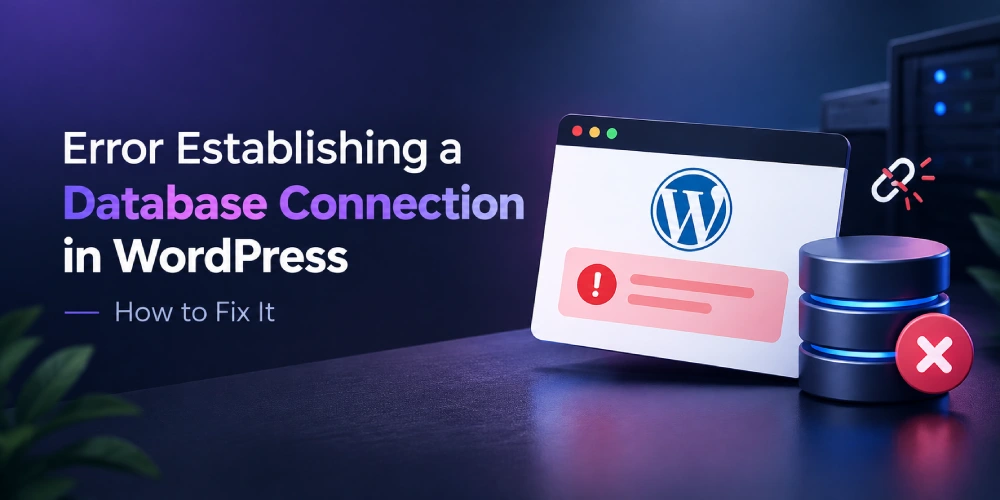

If your site is showing “Error establishing a database connection,” here’s the short version: WordPress can’t currently reach the MySQL database where your content is stored.
Quick Fix Checklist
- Check your database credentials in wp-config.php
- Confirm the database user has permission to access that database
- Confirm your hosting database server is online
- Repair corrupted database tables (back up first)
- Temporarily disable plugins to rule out a conflict
- Contact your host if MySQL itself is down
Before You Start
If this error appeared right after a migration, host change, password change, or database restore, start with Cause 1 below. If it appeared suddenly with no changes to your site, check with your host for a database outage before editing any files.
What Does This Error Actually Mean?
WordPress stores your database login details (the database name, username, password, and host) in wp-config.php. Every page load uses those details to connect to MySQL. When that connection fails for any reason, WordPress displays this error instead of your site.
In most cases, this doesn’t mean your content has been deleted. It means WordPress can’t currently access the database where that content lives. There are less common situations, such as a badly corrupted database or incomplete restore, where data can genuinely be affected. That’s why the database repair steps later in this guide include a backup warning.
Is It Your Site or Your Host? (Check This First)
Load wp-admin.
- If WordPress reports that one or more database tables are unavailable or need repair, skip to Cause 4.
- If you see the same database connection error there too, continue with Cause 1.
Cause 1: Incorrect WordPress Database Credentials
This is a common cause, especially after a host migration or backup restore.
Access your site files via cPanel File Manager, FTP, or your host’s dashboard, then open wp-config.php in your site’s root folder. Check these four lines:
define( 'DB_NAME', 'your_database_name' );
define( 'DB_USER', 'your_database_username' );
define( 'DB_PASSWORD', 'your_database_password' );
define( 'DB_HOST', 'localhost' );
Compare each value against your hosting control panel’s MySQL database settings.
Important: localhost is common, but don’t change DB_HOST to it blindly. Some hosts use a remote hostname (like db123.yourhost.com), a port (like localhost:3306), or a socket path. Use the exact value your host shows in the database settings.
If you have SSH access, you can test the connection directly and get a useful error code:
mysql -u your_database_username -p -h your_database_host- Error 1045 = MySQL rejected the login, usually because the username, password, or authentication details are incorrect
- Error 2002 or 2003 = MySQL server is unreachable
- Error 1044 = the user exists but has no access to that database (see Cause 2)
- Error 1049 = the database name in DB_NAME doesn’t exist
- Successful connection = the database credentials work, so continue with the next causes
No SSH access? Open phpMyAdmin from your hosting panel and try logging in with the same username and password from wp-config.php. If the login fails, your credentials are wrong. If it works, the credentials are fine and the problem is elsewhere.
Cause 2: Database User Doesn't Have the Required Permissions
Your credentials can be entirely correct and MySQL can be running, yet the connection can still fail if the database user hasn’t been granted access to the correct database.
This can happen after a migration, database restore, or manually created database.
In your hosting control panel, confirm that the database user is assigned to the correct database with the necessary privileges. If you’re not sure what’s required, ask your hosting provider to verify the database user and its permissions.
Cause 3: Database Server Is Down, Overloaded, or Over Its Limit
Shared hosting puts many sites on the same database server. If the server is overloaded, has crashed, or your database has reached a hosting-imposed resource limit or quota, you’ll see this error even with correct credentials and permissions.
There’s nothing to fix in your WordPress files in this situation. Contact your host and ask them to check the database server, resource limits, and account status.
Cause 4: Corrupted Database Tables
Only use this section if the connection itself works, for example if wp-admin says tables need repair. Repair tools can’t fix a failed connection. Back up your database first, because repairs modify tables and a backup gives you a way back if something goes wrong.
Option 1: WordPress's Built-in Repair Tool
Add this line to wp-config.php, above the line that says “That’s all, stop editing”:
wp-config.php
define( 'WP_ALLOW_REPAIR', true );Then visit:
yoursite.com/wp-admin/maint/repair.php
Click Repair Database.
When you’re finished, remove the WP_ALLOW_REPAIR line immediately. The repair page does not require a user to be logged in, so leaving the setting enabled could allow someone who discovers the URL to access the repair functionality.
Option 2: WP-CLI
If you have terminal or SSH access and use WP-CLI, run:
wp db repairThis runs the database repair command using the credentials already stored in wp-config.php, so you don’t need to edit the configuration file.
Option 3: phpMyAdmin
If you don’t have SSH or WP-CLI access, you can use phpMyAdmin.
After creating your database backup, open phpMyAdmin from your hosting control panel, select the WordPress database, select the affected tables, and choose Repair table from the table actions menu.
Cause 5: A Plugin, Theme, or WordPress Core Problem
A plugin or theme is less likely to directly cause a true database connection failure, but it’s worth ruling out, especially if the error appeared immediately after an update.
Rename your plugins folder to plugins-disabled via FTP or your hosting file manager, then reload the site.
If the site recovers:
- Rename the folder back to plugins.
- Reactivate your plugins one at a time.
- Reload the site after each activation to identify the plugin causing the problem.
If that doesn’t help, re-upload fresh copies of the wp-admin and wp-includes folders from a matching WordPress.org release. This replaces core files without affecting your content or wp-content directory.
Fixing It on Popular Hosts
The exact menu names change from time to time, so treat these as a starting point and confirm the values in your own panel.
- Hostinger: Find your database name and user under hPanel → Databases. Hostinger’s documentation lists localhost as the database hostname for its databases.
- SiteGround: Check Site Tools → Site → MySQL for your database information. SiteGround’s documentation also lists localhost as the standard MySQL hostname for applications.
- Bluehost: Verify your database name, username, password, and host in your hosting account’s MySQL Databases section, and make sure the values in wp-config.php match exactly.
A Security Note
If this error appeared with no recent migration, database change, or update, and you also notice suspicious activity — such as unfamiliar administrator accounts or unexpected files — investigate the possibility of a compromise.
Change your WordPress, database, and hosting passwords and run a malware scan before assuming the problem is a routine database issue. If you change the database password, update DB_PASSWORD in wp-config.php to match, or you’ll cause this exact error yourself.
How to Prevent This Error
- Back up your site and database before migrations, host changes, and major updates.
- Keep your WordPress core, plugins, and themes updated.
- Prefer your host’s dashboard tools for database management when available.
- Avoid changing database credentials unless you know which values need to be updated in wp-config.php.
- If you enable WP_ALLOW_REPAIR, remove it immediately after the repair is complete.
Frequently Asked Questions
Why does WordPress say "Error establishing a database connection"?
It means WordPress tried to connect to its MySQL database using the details in wp-config.php and the connection failed. Common causes include incorrect credentials, insufficient database permissions, an unavailable or overloaded database server, or database problems.
Will I lose my content?
In most cases, no. A database connection error does not itself delete your content. However, data can be affected in less common situations involving database corruption, failed restores, or other database damage. That's why you should back up the database before attempting repairs whenever possible.
Can I fix this without hosting access?
Sometimes. If you have FTP or file access, you may be able to correct an incorrect wp-config.php setting or disable plugins. However, if the database server is down or database permissions need to be changed on the hosting side, you'll need your hosting provider's help.
Is this always caused by hacking?
No. Database connection errors are commonly caused by configuration, permissions, database-server, or database problems. Investigate a possible compromise when the error appears alongside other suspicious signs, such as unfamiliar users or unexpected files.