
You’ve probably done this a hundred times. You’re about to upload an image to your site, your editor asks you to pick a format, and you just… pick whatever you picked last time. No real thinking involved.
That’s fine until it isn’t. The format you choose quietly decides how fast your pages load, whether your logo has a see-through background or an ugly white box around it, and honestly, how much of your hosting bill goes toward serving images nobody asked to download twice.
So let’s actually settle this. Here’s what JPG, PNG, and WebP are each good at, where they fall apart, and which one you should be reaching for in 2026.
The Quick Answer
If you don’t have time to read the whole thing:
| Format | Best for | File size | Transparency | Browser support (2026) |
|---|---|---|---|---|
| JPG | Photos, universal compatibility | Medium | No | 100% |
| PNG | Logos, screenshots, anything needing transparency | Large | Yes | 100% |
| WebP | Website images in general | Smallest (practical) | Yes | 96%+ |
| AVIF | Large hero images, if supported | Smallest (theoretical) | Yes | ~93% |
Short version: use WebP for almost everything on your website. Keep JPG around for photos you’re sharing outside your site (email, print, social uploads). Keep PNG for the rare case where WebP isn’t an option, or for admin tools that expect it.
Now the longer version, because the “why” actually matters here.
JPG: The Old Reliable
JPG (or JPEG) has been around since 1992, which in internet years is basically ancient. It’s lossy, meaning every time you save one, it throws away a bit of data you probably won’t notice, in exchange for a smaller file.
Its one real superpower: it works everywhere. Every camera, every printer, every email client, every social platform, every design tool built in the last three decades reads JPG without blinking. That’s not nothing.
Where it struggles is flat graphics. Logos, text, screenshots, anything with hard edges. JPG’s compression was designed for photographs with smooth gradients, so when you feed it a sharp-edged graphic, you get that fuzzy “halo” effect around text and lines. You’ve seen it. It looks cheap.
It also has zero transparency support. Save a logo with a transparent background as JPG, and that transparency turns into a solid white (or black) box. There’s no undoing that once it’s saved.
Use JPG when: you’re exporting a photo for print, email, or a platform outside your own site, and universal compatibility matters more than a few extra KB.
PNG: Built for Precision, Not Speed
PNG is lossless. Nothing gets thrown away when you save it, so text stays razor sharp, and it fully supports transparency (that alpha channel is the whole reason PNG exists as a separate format from JPG in the first place).
That’s exactly why it’s the right call for logos, icons, UI screenshots, and anything where a slightly blurry edge would actually be noticeable. If you’ve ever seen a logo look weirdly soft or fuzzy on a website, there’s a decent chance someone saved it as JPG instead of PNG.
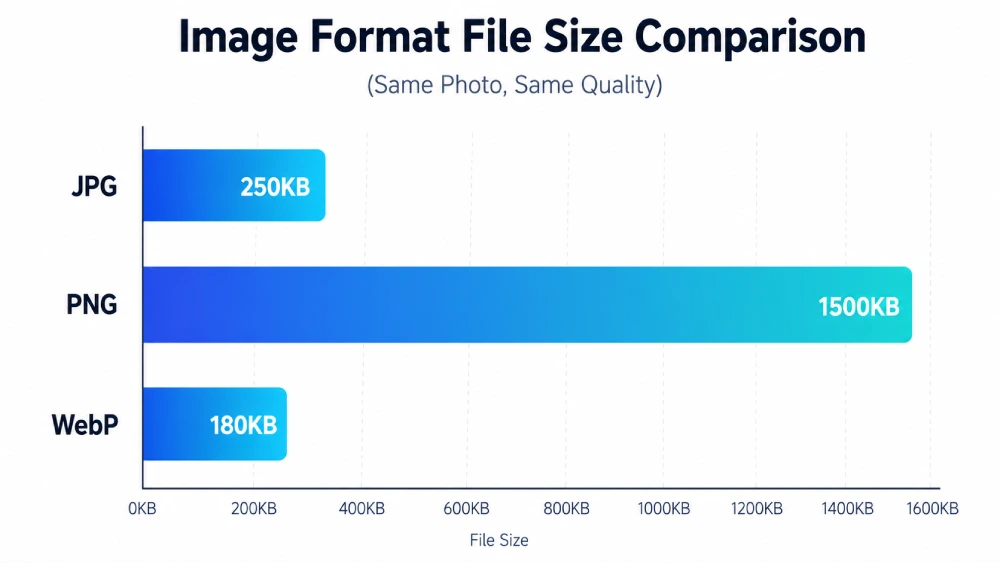
The tradeoff is size. Because nothing gets compressed away, a full-color photo saved as PNG can end up 5 to 10 times bigger than the same photo saved as JPG. That’s a real problem if you’re using PNG for anything photographic on a live website. It’ll load slow, and Google will notice.
Use PNG when: you need a transparent background, or the image has text/sharp lines where lossless quality actually matters, and file size isn’t the priority.
WebP: The One Made For The Web
WebP was built by Google back in 2010 specifically to solve the problem the other two formats can’t solve on their own: small files without giving up transparency or quality. It supports both lossy and lossless compression in the same format, so it can act like a smaller JPG or a smaller PNG depending on what you need.
In practice, that means lossy WebP files run somewhere around 25 to 35% smaller than an equivalent JPG at the same visual quality, and lossless WebP comes in roughly 25% smaller than PNG.
Browser support isn’t a concern anymore either. As of 2026 it’s sitting above 96% globally, and the only holdouts are ancient browsers nobody’s actually using to browse the modern web. Chrome, Firefox, Safari (since version 14), Edge, Opera… all of them handle it natively.
The one place WebP still trips people up is outside the browser. Some email clients won’t render it. A handful of older desktop software and print workflows don’t accept it either. So if you’re prepping an image for an email newsletter or a print job, don’t reach for WebP there.
Use WebP when: the image is going on your website. Basically all the time.
Why This Actually Affects Your SEO
Here’s the part people skip past. Google doesn’t give a ranking bonus for “using WebP” as a checkbox. What it does care about is page speed, and specifically your Largest Contentful Paint (LCP), which is one of the three Core Web Vitals it uses as a ranking signal.
Images are usually the heaviest thing on a page. If your hero image is a 900KB PNG when it could’ve been a 250KB WebP, that’s extra load time baked into every single visit, on every device, including the slow mobile connections most of your traffic probably comes from.
Smaller images also mean lower bandwidth costs if you’re paying for hosting or a CDN, and faster perceived load times keep people from bouncing before the page even finishes rendering. None of that is a WebP-specific magic trick. It’s just what happens when your images are smaller and load faster, and WebP happens to be the easiest way to get there without giving anything up.
So What Should You Actually Do
If your site is already full of JPGs and PNGs, you don’t need to rebuild anything. Just convert your existing images over, and use WebP going forward for anything that isn’t destined for print or email.
The annoying part is usually the “how.” Most online converters make you upload your files to some server, which is slow and, depending on what you’re converting, not something you necessarily want to do with client work or personal photos.
I built a free image to WebP converter that skips that step entirely. Everything happens locally in your browser, your files never get uploaded anywhere, and you can convert PNGs and JPEGs in bulk instead of one at a time. If you’re sitting on a folder of old PNGs that are quietly slowing your site down, that’s the fastest way to fix it.
Frequently Asked Questions
Does converting to WebP hurt image quality?
At 80 to 85% quality, most people can't tell the difference from the original. You only start losing noticeable quality if you push compression really aggressive, well below 70%.
Will switching to WebP actually improve my Google ranking?
Not directly, no. But it'll speed up your pages, and page speed is a ranking factor. So indirectly, yes, it usually helps.
What about AVIF? Isn't that supposed to be even smaller?
It is, roughly 50% smaller than JPG in some cases, which is better than WebP's savings. But it encodes slower and support is a bit behind WebP's. For most sites, WebP is still the safer default in 2026. AVIF is worth using for big hero images if your setup supports it.
Can I convert a transparent PNG to WebP without losing the transparency?
Yes. WebP supports transparency in both lossy and lossless modes, so a transparent PNG converts over cleanly.
Should I keep JPG or PNG versions as a fallback?
For most modern sites, no, it's not necessary anymore given how high WebP support is. If your audience skews toward very old browsers or specific enterprise software, a fallback via the element is still an option, but for the average site it's extra complexity you probably don't need.
What about screenshots and logos, should those be WebP too?
Yes, WebP handles those fine, including sharp text and transparency. The only reason to keep PNG around is if a specific tool or workflow you use still expects PNG uploads.
Bottom Line
JPG for compatibility outside your site. PNG for the rare cases needing lossless transparency with no compression concerns. WebP for basically everything else on your website. That’s it. That’s the whole decision tree, and once you convert your existing image library over, you won’t think about it again until AVIF support catches up in a couple more years.