HS Article

How to Upload Full Size Images in WordPress

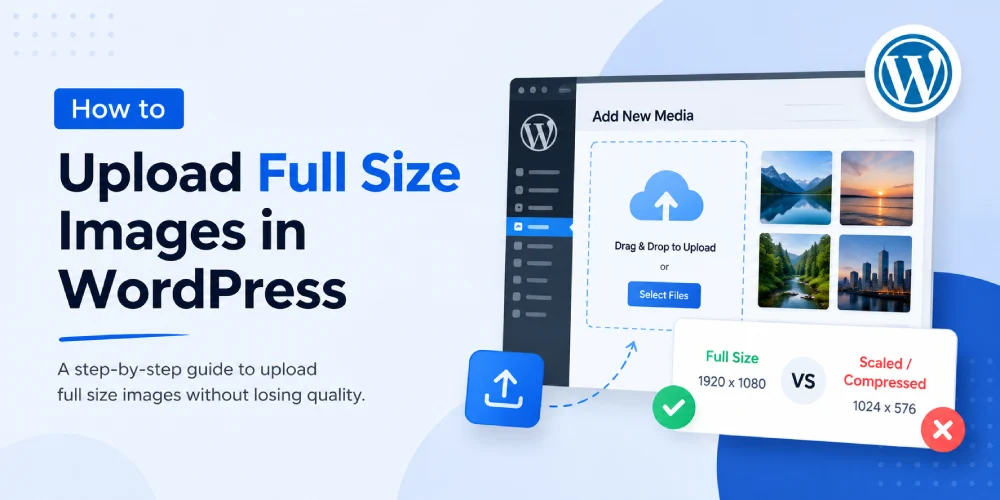
If you’ve ever uploaded a huge image to WordPress and noticed it got shrunk down, you’re not imagining things. Since version 5.3, WordPress automatically scales anything larger than 2560px. For some people this is great it keeps websites from choking on massive photos. But if you work with photography, design, or just want your images untouched, it can be annoying.

The fix is simple though. Drop this line into your functions.php file (or, if you hate touching code, use a snippets plugin):

🐘
filename.php
add_filter( 'big_image_size_threshold', '__return_false' );

That one line tells WordPress: “hands off my images.” From now on, whatever you upload stays exactly the size you picked.

One quick tip: don’t just upload raw massive files straight from your camera. They’ll slow your site down a ton. I usually run my images through my free WebP converter before uploading — it shrinks them significantly while keeping them sharp.

That’s pretty much it. One line of code and you’re back in control.

5 1 vote
Article Rating
Subscribe
Notify of
guest
0 Comments
Oldest
Newest Most Voted
CSS Gradient Banner

How to Use CSS Gradients in Web Design – Complete 2026 Guide

If you are designing websites in 2026, gradients are...

Read More
Free stock image websites

Top 13 Free Stock Image Websites

Most people grab an image from Google and call...

Read More
Image on heading

How to Add a Background Image in Heading Using CSS

Adding a background image to headings is a simple...

Read More
Add Content Dynamically with jQuery Prepend

How to Use jQuery Prepend to Dynamically Add Content to Any Website

When you need to insert content at the top...

Read More
CSS Media Queries

CSS Media Queries for Responsive Web Design

CSS media queries are an excellent way of changing...

Read More
Change Placeholder Text Color in Form

How to Change Placeholder Text Color in Contact Form 7 | WordPress

Easily change and style placeholder text in Contact Form...

Read More