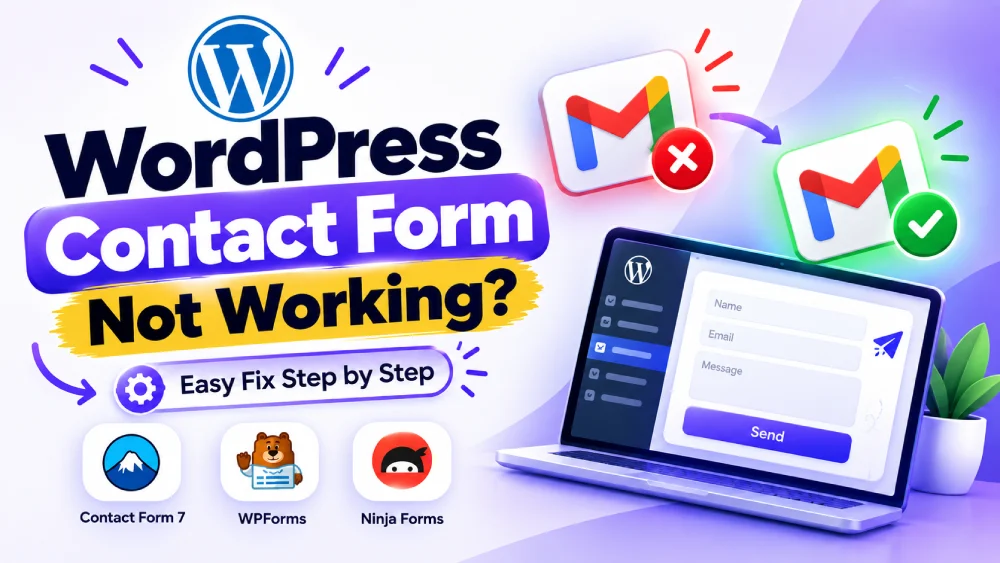

Your form doesn’t always submit cleanly either, sometimes it throws an error when someone hits send, and other times it submits fine but the email never shows up in your inbox. Both point to the same root cause, and the fix is almost always the same: set up SMTP.
Here’s how to actually fix it, not just patch around it.
Watch How to Fix It (Gmail SMTP Setup)
Prefer to watch instead of read? This walkthrough covers the exact Gmail SMTP setup below, step by step.
Quick Checks Before You Touch Anything
Before installing anything, rule out the easy stuff:
- Check your spam or junk folder. The email may already be arriving, just not where you’re looking.
- Confirm the notification email address in your form settings. A typo here is more common than people admit.
- Submit a real test entry yourself. Fill out the form like a visitor would and watch what happens on both ends.
If none of that turns anything up, the problem is almost certainly email delivery, not the form.
Why This Happens: PHP Mail Is the Real Problem
By default, WordPress sends emails using PHP’s built-in mail() function. It’s old, it has no authentication, and modern mail providers like Gmail and Outlook don’t trust it. Many hosts block it outright to stop shared servers from being used for spam.
So your form can work perfectly and the email can still vanish, because it’s not the form that’s broken. It’s the delivery method underneath it.
The Fix: SMTP Using Gmail
SMTP (Simple Mail Transfer Protocol) replaces PHP mail with an authenticated connection to a real mail provider. Gmail is the easiest option if you already have a Google account, it’s free, and it doesn’t need a separate SMTP service. The plugin that handles this is WP Mail SMTP, and the video above walks through the exact setup.
What You're Actually Setting Up
Instead of WordPress sending mail through your server’s unauthenticated PHP function, WP Mail SMTP routes it through Gmail’s own mail servers using your Gmail account as the sender. Since Gmail is a trusted provider, the emails carry proper authentication and are far less likely to get blocked or flagged.
Why the Test Email Step Matters
Once SMTP is connected, sending a test email is the only way to confirm the authentication actually worked. If a test email doesn’t arrive, the plugin’s email log will show the exact rejection reason from Gmail, rather than you guessing at what went wrong.
Emails Going to Spam Instead of Missing Completely?
This is a different symptom of the same problem. If your form emails are arriving but landing in spam, SMTP alone usually fixes most of it, since it authenticates the sender. But if spam keeps happening after SMTP is set up, your domain likely needs proper email authentication.
Add SPF, DKIM, and DMARC Records
These are DNS records that prove your domain is allowed to send mail through your chosen provider:
- SPF lists which servers are authorized to send email on your domain’s behalf
- DKIM digitally signs your outgoing emails so receiving servers can verify they weren’t altered
- DMARC tells receiving servers what to do if SPF or DKIM checks fail
Google’s admin/domain tools will show you the exact SPF record to add if you’re sending through Gmail/Google Workspace. Add these through your domain registrar’s DNS settings, then give it a few hours to propagate. Note: DKIM and DMARC through Gmail are easiest to set up properly if you’re on Google Workspace, a plain personal Gmail account has more limited control here.
Fixing It on Specific Form Plugins
The SMTP fix above works regardless of which form plugin you use, but here’s what to also check per plugin:
Contact Form 7
Go to Contact > Contact Forms, open your form, and check the Mail tab. Make sure the “From” address uses your own domain, not a placeholder like wordpress@yoursite.com, since some hosts reject mismatched sender domains even with SMTP active.
WPForms
Check Settings > Notifications inside your form. WPForms also has its own smart tags for the “From Email” field, make sure it isn’t left on a default that doesn’t match your domain.
Gravity Forms
Gravity Forms rarely has delivery issues once SMTP is active, but if it persists, check Forms > Settings > Notifications and confirm the routing rules aren’t sending conditionally to a field that’s sometimes empty.
Ninja Forms
Check the Emails/Actions tab on your form. Ninja Forms’ own team also maintains an SMTP plugin called SendWP as an alternative if you’d rather not use WP Mail SMTP.
Frequently Asked Questions
Why is my WordPress contact form not sending emails?
WordPress uses PHP's mail function by default, which lacks authentication and gets blocked or distrusted by mail providers. Setting up SMTP through a plugin like WP Mail SMTP fixes this in most cases.
Do I need to know code to set up SMTP?
No. WP Mail SMTP handles the setup through a dashboard wizard, and connecting Gmail only needs an app password, no code involved.
Will SMTP stop my emails from going to spam?
In most cases, yes, since it authenticates your outgoing mail. If spam continues after SMTP is set up, add SPF and DKIM records for your domain.
Does this fix work for Contact Form 7, WPForms, and Gravity Forms?
Yes. SMTP replaces the delivery method WordPress uses, so it works underneath any form plugin. Some plugins have their own settings worth double checking too, covered above.
Is SMTP with Gmail free?
Yes. WP Mail SMTP is free, and Gmail's SMTP relay is free for normal sending volumes on a personal Gmail account.
Final Thoughts
A contact form that fails silently is worse than no form, because you don’t even know you’re losing leads until someone mentions it. Setting up SMTP takes a few minutes and fixes both the missing email problem and the spam folder problem at the same time.