
Most WordPress sites don’t get hacked because of some advanced attack. They get hacked because an outdated plugin sat unpatched for months, or a backup that nobody checked turned out to be broken the day it was needed. A short monthly check can catch many of the common problems before they become serious, and it takes less time than people expect.
Here’s a practical checklist to help reduce your risk of getting hacked, one you can get through in about 15 minutes (plus an occasional restore test), not a 30-item audit that gets skipped because it’s overwhelming. A short list you finish every month prevents far more problems than a long one you abandon after the first try.
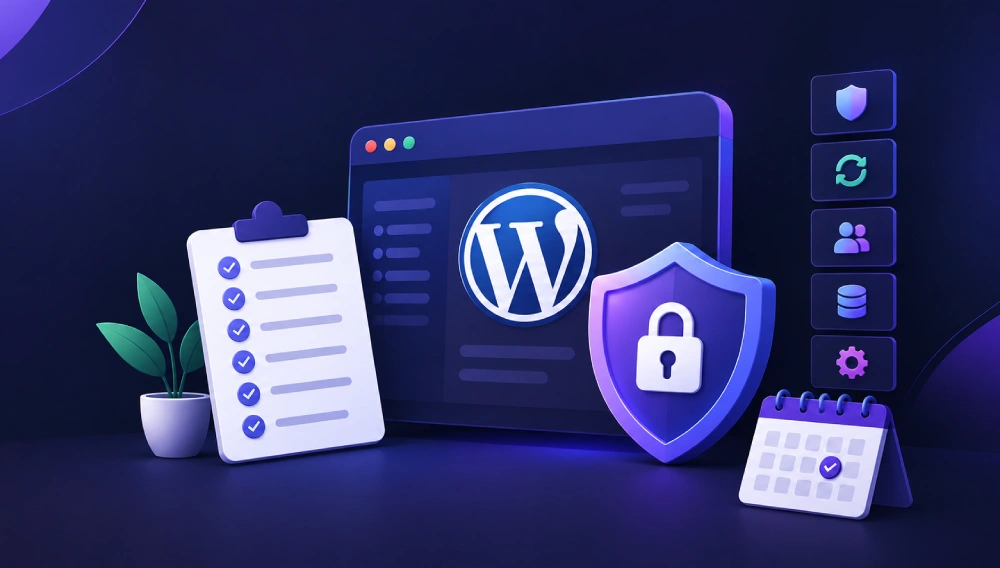
Quick Monthly Checklist
- Update WordPress core, themes, and plugins, and delete anything unused
- Check WordPress Site Health
- Review your admin users for anything unfamiliar
- Run a full scan with your security plugin
- Confirm your latest backup completed successfully
- Check login activity for repeated failed attempts
1. Update WordPress Core, Themes, and Plugins
Outdated plugins are consistently one of the most common ways WordPress sites get compromised. A plugin that hasn’t been updated in a year isn’t just missing new features; it’s likely missing security patches for vulnerabilities that are already public knowledge.
Go to Dashboard > Updates and update everything shown there. If you’re nervous about an update breaking something, test it on a staging copy of your site first, or at minimum take a backup immediately before updating.
While you’re there, delete any plugins and themes you’re not using. Deactivated plugins still sit on your server, and a vulnerable file can sometimes be requested directly even when the plugin is inactive, so deactivating is not enough. If you come across a plugin you don’t remember installing, or one its developer no longer maintains, take a second look; an abandoned plugin is a long-term risk even if it works fine today.
It’s also worth turning on auto-updates for minor and security releases of WordPress core, and for plugins you trust. It’s one of the easiest security wins available.
2. Check WordPress Site Health
WordPress has a built-in tool for exactly this, under Tools > Site Health. It checks for things like outdated PHP versions, missing security recommendations, and configuration issues, and it’s often overlooked simply because people don’t know it’s there.
Spend two minutes on the Status tab. Anything listed under “Critical issues” is worth addressing that same month, not whenever you get around to it. “Recommended improvements” can wait for a quieter moment, but don’t ignore them entirely. Site Health is a useful first check, but it isn’t a substitute for a dedicated security scan.
Read: Site Performance
3. Review Your Admin Users
Go to Users and look at who actually has administrator access. This is easy to leave unchecked for years: an old freelancer who no longer works on the site, a client’s former employee, a test account you created once and never removed. Remove or downgrade anyone who doesn’t need admin rights.
While you’re here, make sure every admin account uses a strong, unique password, and enable two-factor authentication on them if you haven’t already. Admin accounts are the keys to the whole site.
If you see an admin account you don’t recognize at all, that’s a different situation. Treat it as a possible sign of compromise, not routine cleanup. Change your WordPress and hosting passwords immediately, log out all users (Users > Your Profile > “Log Out Everywhere Else” for your own account, or via your security plugin for everyone), run a security scan, and check for other unfamiliar admins and recently modified files. If the compromise is confirmed, restore from a known-clean backup or contact your host or a security professional.
4. Run a Full Security Scan
A dedicated security plugin, like Wordfence or Sucuri, can scan for malware, unexpected file changes, and known vulnerabilities. Most of these plugins can run scans automatically on a schedule, but it’s worth actually opening the results once a month rather than letting them pile up unread in an email you don’t check.
If a scan flags something, don’t dismiss it without looking closer. False positives happen, but so do real infections, and the only way to tell the difference is to investigate the specific file or change the scan is pointing to. Pay particular attention to recently modified files you didn’t touch yourself.
5. Confirm Your Backups Actually Work
This is the step most people skip, and it’s arguably the most important one. Having a backup running isn’t the same as having a backup you can rely on. Backups can silently fail, run against an empty database, or save to a storage location that’s since been disconnected, and you often don’t find out until the exact moment you need one.
Every month, look at your backup logs and confirm that the latest backup completed successfully. Every few months, go a step further and test-restore it, ideally to a staging site, to confirm it genuinely works. A backup you’ve never tested is a guess, not a safety net.
6. Check Login Activity for Brute Force Attempts
Most security plugins log failed login attempts. A handful of failed logins here and there is normal background noise on the internet, but a concentrated spike from the same IP address, or hundreds of attempts in a short window, is a sign your login page is being actively targeted.
If you see this, add a login attempt limiter if you don’t already have one, and make sure two-factor authentication is switched on for admin accounts.
Plugin: Math CAPTCHA Plugin | Login Protection Plugin
What to Do If Something Looks Wrong
If any of these checks turn up something genuinely suspicious (an admin account you didn’t create, a scan flagging unfamiliar files, or a site that suddenly behaves differently with no update or change on your end), don’t wait for next month’s check. Change your WordPress, database, and hosting passwords right away, and run a full malware scan before you do anything else on the site.
Frequently Asked Questions
How often should I run a WordPress security check?
Monthly is a reasonable minimum for most sites. If your site handles sensitive data, payments, or high traffic, weekly is worth considering, particularly for updates and backup verification.
Do I need a security plugin if my host already offers security features?
It depends on what your host actually covers. Many hosts handle server-level protection, but a dedicated plugin like Wordfence or Sucuri adds WordPress-specific scanning, such as checking for changes to core files and known plugin vulnerabilities, which most hosting-level security doesn't cover.
Is updating plugins immediately always safe?
Not always. Occasionally an update introduces a conflict with your specific theme or another plugin. That's why taking a backup first, and testing on staging if you have it available, is worth the extra few minutes before updating a live site.
What's the single most important item on this checklist?
If you only have time for one thing, make it backups. A reliable, tested backup makes recovery after a compromise much faster and safer. A site with no working backup can mean losing everything.