
If you have ever run an SEO audit or an accessibility checker on your WordPress site and got hit with a long list of images missing alt text, you are not alone. It is one of the most common issues on WordPress sites, and honestly, one of the easiest to ignore until it piles up.
The tricky part is that fixing it properly is not always as simple as typing a sentence into a box. Some images look fine in the Media Library but still show up as broken on the actual page. Others get missed entirely because nobody wants to click through two hundred images one at a time.
This guide walks through what alt text actually does, how to find where it is missing, why some fixes do not stick, and how to clean it up across your whole site without losing a full afternoon to it.
How to Check If Your Images Are Missing Alt Text
Before fixing anything, you need to know where the gaps actually are. There are three common ways people check this, and each has its limits.
Check One Image at a Time in the Media Library
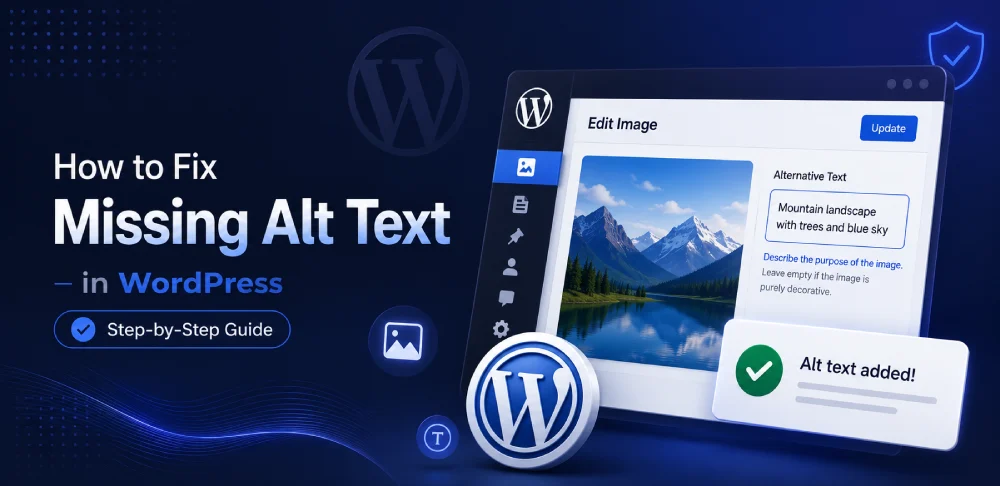
Go to Media Library, click on an image, and look at the Alt Text field on the right. If it is blank, that image has no alt text.
This works fine if you are checking two or three images. It falls apart fast on a site with hundreds of images, because there is no way to filter or sort by what is missing. You would be opening every single image just to see which ones are empty.
Use Your Browser's Inspect Tool
Right click on any image on your live page and choose Inspect. Look for the alt=”” attribute inside the image tag. If it is empty or missing entirely, that image has no alt text on the front end.
This is a decent way to spot check a single page, but it does not scale either. You would need to inspect every image on every page manually, which is not realistic once your site grows past a handful of posts.
Use Your SEO Plugin's Checker
Yoast, Rank Math, and similar plugins sometimes flag missing alt text as part of their content analysis. It is a helpful nudge, but it usually only checks the post you are currently editing, not your whole site at once, and it will not catch every issue explained in the next section.
The Alt Text Problem Most Guides Do Not Mention
Here is something that trips up a lot of site owners. You go into the Media Library, add alt text to an image, save it, and assume the job is done. Then a checker still flags that same image as missing alt text somewhere on your site.
This happens because alt text in WordPress is not always connected the way people assume. When you insert an image into a post through the editor, the alt text gets copied into that specific post at that moment. After that, the Media Library version and the version inside the post are two separate things. If you go back and edit the alt text in the Media Library later, the version already sitting inside your published post does not update automatically.
So it is completely possible to have a clean, well written alt text saved on the image itself, while the actual page is still showing the image with no alt text at all, or an old outdated one.
This is exactly why a lot of manual fixes do not stick. Someone spends an afternoon cleaning up the Media Library, feels good about it, and a follow up scan still comes back with issues. The fix has to happen at the point where the image is actually being displayed, not just where it is stored.
Fixing Alt Text Manually (And Why It Gets Painful Fast)
If your site only has a handful of images, doing this by hand is honestly fine. Open each image, write a clear description of what it shows, and save.
A few quick rules for writing decent alt text:
Describe what is actually in the image, not what you wish it said. If it is a product photo of a blue ceramic mug, say that, not “great gift idea.”
Keep it under roughly 125 characters. Longer than that and screen readers may cut it off, and it stops reading naturally anyway.
Skip keyword stuffing. Writing “wordpress alt text wordpress alt text fix” into an alt tag does nothing for you and actually hurts more than it helps.
Leave it blank only for truly decorative images, like a spacer or a background pattern that adds nothing informative.
The problem is not the writing part. It is the scale. Once you are past thirty or forty images spread across dozens of posts, checking each one individually and remembering which ones you already fixed becomes its own project. This is the exact point where most people either give up halfway or start looking for a faster way to do it.
Fixing Missing Alt Text Across Your Whole Site Without Opening Every Post
This is where a proper audit tool changes the math. Instead of hunting through posts one at a time, a good alt text audit scans your entire media library in one pass and shows you exactly where the problems are, sorted in a way that actually makes sense.
A well built audit typically breaks your images into four groups.
Missing means there is no alt text at all.
Weak covers things like filename based text such as IMG_4582, single word descriptions, or text that has gone on way too long.
Duplicate flags images that are using the exact same alt text as other images on your site, which weakens the value of both.
Good is everything that is already written properly, so you are not wasting time re-checking things that do not need it.
From there, the fix itself should happen inline, meaning you can edit the Title, Alt Text, and Description fields right there in the same screen and save them together, instead of opening the image, saving, closing, and repeating that thirty more times.
The part that solves the disconnect issue mentioned earlier is checking for post level overrides. A proper audit does not just look at the Media Library version of an image, it also checks whether the alt text actually being shown inside a specific post matches what is stored centrally. If they do not match, that gets flagged specifically, so you are not left guessing why a page still shows a problem after you thought you already fixed it.
This is essentially what our own HSArticle Image SEO Audit plugin does. It scans your whole media library in batches so it will not time out even on a larger site, sorts everything into those Missing, Weak, Duplicate, and Good categories, and lets you edit and save all three fields together from one screen. It also checks for those post level mismatches that most tools skip entirely, so you are fixing the actual problem instead of just the surface version of it.
Checking Your Overall Image SEO Health, Not Just Alt Text
Alt text is one piece of image SEO, but it is not the only one. Once it is cleaned up, it is worth checking a few related things across your posts.
Does every post have a featured image set. Are there any images without captions. Are focus keywords, where relevant, reflected anywhere in the image alt text. Is your meta title and description actually filled in for each post.
Running this kind of check across your entire site, rather than post by post, gives you a much clearer picture of where your weak spots actually are. This is the kind of scoring the Per-Post SEO Score tab in the same plugin handles, checking each published post and page against these points and working with whichever SEO plugin you already use, or running the basic checks even without one installed.
Alt Text Is Not the Only Thing Worth Fixing While You Are In There
Since you are already going through your images one section at a time, it is worth glancing at two other things that quietly affect image SEO alongside alt text.
File format is one of them. A lot of sites are still running large PNG or JPG files where a WebP version would load faster and help your Core Web Vitals scores. If you are curious about the actual difference between them, we broke it down in WebP vs PNG vs JPG: Which Should You Use in 2026. If you already know WebP is the way to go and just need to convert your existing images, our free Image to WebP Converter does that without needing to install anything.
Where your images come from matters too. Stock photos with vague or auto generated file names are one of the biggest sources of weak alt text to begin with, since nobody bothers renaming “pexels-photo-4823.jpg” before uploading it. If you are sourcing new images, our list of free stock image websites is worth a look, since starting with better named, higher quality images makes the alt text part easier from the start.
None of this replaces fixing your alt text, but it rounds out the same effort since you are already in image cleanup mode.
Quick Recap
Alt text affects both accessibility and how well your images perform in search, so it is worth taking seriously rather than treating it as an afterthought.
Checking manually works fine for a handful of images, but does not scale once your library grows.
Alt text saved in the Media Library and alt text shown inside a post are not always the same thing, which is why some fixes do not actually resolve the issue.
For sites with more than a handful of images, an audit that scans your whole library, sorts the problems clearly, and lets you fix them from one screen saves a genuinely large amount of time compared to going post by post.
Frequently Asked Questions
Does adding alt text in the Media Library automatically fix it everywhere the image is used?
Not always. If the image was already inserted into a post before you edited the alt text, that post may still be showing the older version. You may need to check the post itself, not just the Media Library.
Is it okay to leave alt text blank on some images?
Yes, for purely decorative images like dividers or background patterns, an empty alt attribute is actually the correct approach rather than forcing a description that adds no value.
Does missing alt text really affect SEO rankings?
It affects how well search engines understand your images, which matters most for image search visibility. It is one of several image SEO factors, not the only one, so fixing it helps but is not a silver bullet on its own.
How long should alt text be?
Roughly under 125 characters is a safe target. Long enough to describe the image clearly, short enough that screen readers do not cut it off or make it feel repetitive.
Can I fix alt text without installing a plugin?
Yes, for smaller sites the Media Library and browser inspector methods work fine. Once your image count grows into the hundreds, a bulk audit tool saves a significant amount of manual work.